Preserve the input and state the goal
Retain original text and stable record IDs beside transformed text. Define the desired output: one readable line, preserved paragraphs or an exact technical identifier. A smaller character count does not establish a better result. Inspect an affected sample before choosing a function; otherwise a cleanup intended for prose may remove meaningful spacing or case from codes.
Normalize ordinary spaces
=TRIM(A2) removes leading/trailing ordinary spaces and collapses repeated internal ordinary spaces to one. Single word boundaries remain. It is different from a count excluding spaces, which removes them from the measured copy. Check the text, not only its length. Do not apply this normalization to alignment or fixed-width data whose spacing is structural.
Convert nonbreaking spaces deliberately
TRIM alone does not remove Unicode nonbreaking space 160. If your rule treats it as ordinary, use =SUBSTITUTE(A2,UNICHAR(160)," "), then TRIM the result. Replacing with a space preserves the boundary; replacing with nothing can join words. Code 160 is not every invisible separator. Identify unresolved characters in a short sample before applying a global substitution.
CLEAN removes controls, not every invisible character
CLEAN targets ASCII controls 0–31; Microsoft does not describe it as universal Unicode cleanup. Tabs and line feeds can be among the removed controls. In the literal Italian example, Pane followed by a break and fresco should not become Panefresco when a sentence is wanted. Convert meaningful separators to spaces first. If line breaks must remain, indiscriminate CLEAN is unsuitable.
Make the cleanup sequence inspectable
For one-line descriptions, keep separate stages: NBSP conversion, agreed tab/break-to-space replacement, permitted control removal, then ordinary-space normalization. Label each helper column. Order matters: deleting a tab before converting it loses the boundary; inserting spaces after TRIM may require trimming again. Test already correct text, repeated spaces, real newlines and the known special separator. Exclude test rows from production totals.
Review the differences before replacement
Prioritize large length differences while keeping each count attached to its record. A multiline technical note may legitimately change a lot if flattened; review whether flattening was intended. Flag values that become empty, since separator-only input is not a usable required description. Compare identifiers against their specification, preserving significant prefixes and hyphens. Only replace source values after inspecting the actual resulting text.
Keep the next import reproducible
Keep the transformation rule with the workbook for the next import. Before replacing delivery data, retain the source and check row order, required fields and exported lengths. Reopen a sample of the real export. For one passage, the character counter offers a length comparison under its declared method; for a dataset, preserve the row-level audit and transformations rather than only one combined total.
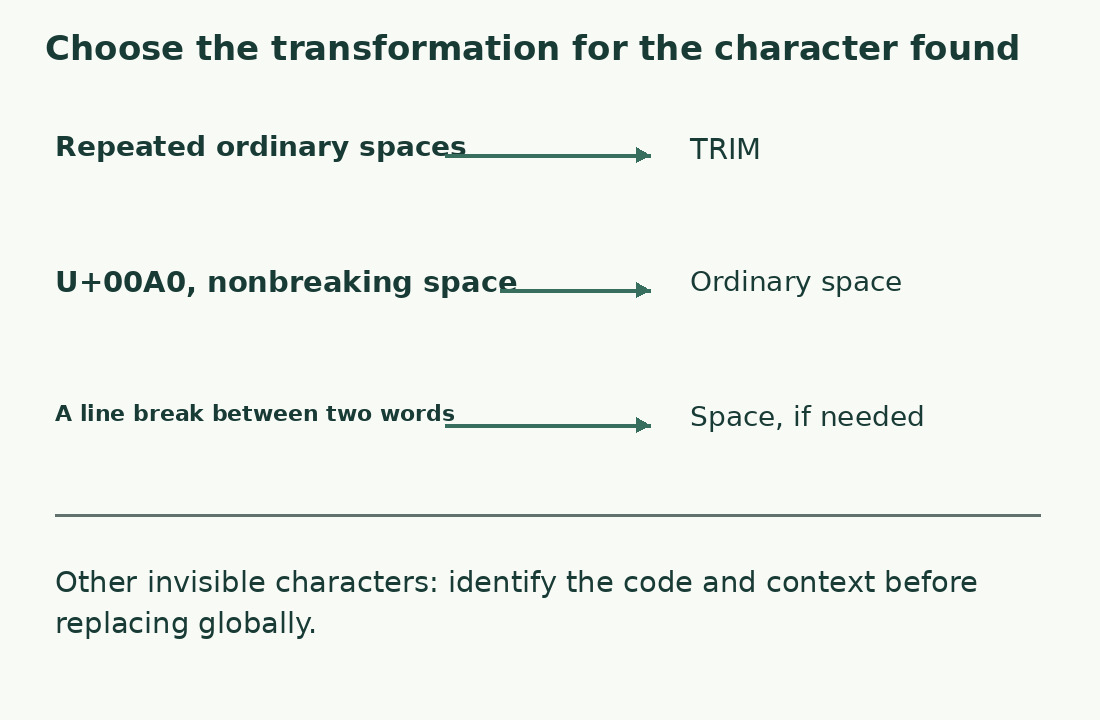
Choose the transformation by character
| Problem | Operation | Check |
|---|---|---|
| Repeated ordinary spaces | TRIM | One word boundary remains |
| NBSP 160 | Replace with ordinary space | Declared conversion |
| Line break between words | Convert to space when required | No merged words |
| Other invisible marks | Identify before replacing | No universal-cleanup promise |
Sources and checks
- Microsoft: TRIM · Ordinary-space normalization; NBSP is not removed by this function alone.
- Microsoft: CLEAN · Removes ASCII controls 0–31, not every Unicode invisible character.
- Microsoft: Unicode character function · Creates the character for a specified Unicode number.
- Microsoft: Data cleanup · Organize transformations and verify imported data.