What the formula removes
SUBSTITUTE replaces every ordinary space with an empty string; LEN measures the result. The second argument contains one space between straight quotes, the third nothing. Putting a space in the third argument leaves that character unchanged.
English examples use commas between arguments; adapt separators to regional settings without changing logic. Use straight formula quotes. A2 is unchanged, so keep separate labeled results for “original characters” and “characters excluding ordinary spaces”.
Letters are not the same as characters without spaces
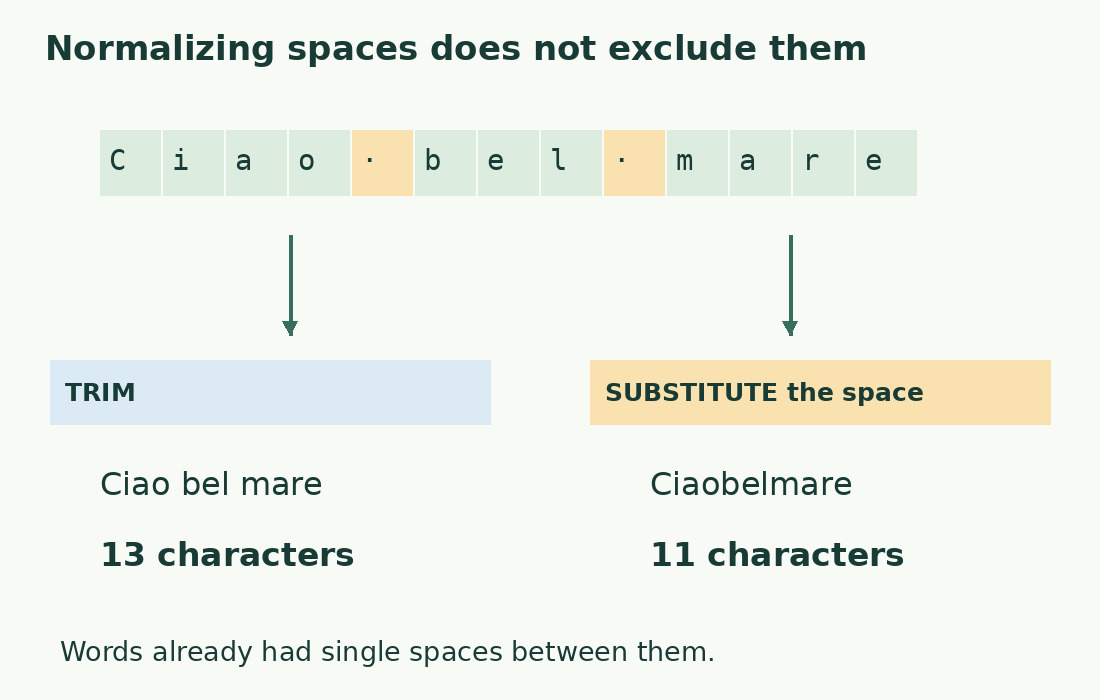
Keep the literal Italian sample Pane e acqua.: four letters in Pane, one in e, five in acqua, two spaces and a period give 13 characters. Removing two spaces leaves 11, not 10, because punctuation remains.
Put =LEN(A2) in B2 and the no-space formula in C2; =B2-C2 in D2 gives two spaces removed. A second sample with one leading and one trailing space has original length 15 and no-space length 11, checking all occurrences, not only internal spaces.
TRIM answers a different question
TRIM removes ordinary edge spaces and reduces repeated internal spaces, preserving single boundaries. Two spaces between Pane and e become one after trimming, none after substitution. Counting TRIM(A2) measures regularly spaced text rather than text excluding spaces.
Choose normalization for clean catalog descriptions and exclusion when the counting requirement asks for it. Do not deliver unreadable space-free prose just because a technical calculation uses it. For editorial cleanup see cleaning Excel spaces.
Similar-looking spaces may differ
Web text can contain Unicode 160, a nonbreaking space that ordinary-space substitution misses. Microsoft’s TRIM documentation states this limitation. If your rule treats it as ordinary space, first create =SUBSTITUTE(A2,UNICHAR(160)," "), then apply the no-space count to that helper cell.
This is a specified conversion, not blanket removal of invisible characters. Tabs and breaks require further decisions: a break may need conversion to a space for readable output rather than deletion that merges entries. Separate reading text from measurement text.
Audit exclusions row by row
Calculate each description’s original and no-space lengths, then sum both result columns. Their difference quantifies excluded ordinary spaces. If a long row shows no difference, examine whether it is a legitimate single word, code, address or tab-separated value; do not force the formula to match expectations.
Both a truly empty cell and three ordinary spaces yield zero after substitution, but the originals differ. Flag empty data and separator-only data separately if quality matters.
Confirm the destination’s rule
“Without spaces” may mean only ordinary spaces or all separators. The recipient’s specified method governs. Compare a short ordinary sentence and one with a line break to isolate any difference, preserving a nonconfidential sample instead of adding random characters to force agreement.
The character counter offers a pasted-text comparison with distinct metrics. For structured lists, keep original, transformation and row results so another person can interpret the exported total.
Keep two thresholds when needed
A text can pass the no-space threshold and exceed the including-spaces threshold. Retain two measured values and limits. Never convert using a fixed percentage: many short words and a few long words have different space proportions. Use each row’s actual result; the observed difference is not a standard discount.
Three operations on one text
| Operation | Effect | Pane e acqua. |
|---|---|---|
| LEN | Measures the original text | 13 |
| LEN after TRIM | Preserves single spaces | 13 |
| LEN after space SUBSTITUTE | Excludes two ordinary spaces | 11 |
Sources and checks
- Microsoft: SUBSTITUTE · Targeted replacements and optional occurrence selection.
- Microsoft: TRIM · Ordinary-space normalization; NBSP is not removed by this function alone.
- Microsoft: Unicode character function · Creates the character for a specified Unicode number.