Define the actual requirement
Write the rule before configuring Excel: “at most 50 characters including spaces” defines unit and inclusive maximum. Decide separately whether blank and spaces-only values are acceptable. If export adds a four-character prefix to 48 source characters, the 52-character result fails. Validate the delivered string or allocate a margin derived from that real transformation, rather than treating column width as a limit.
Configure Text Length on the input range
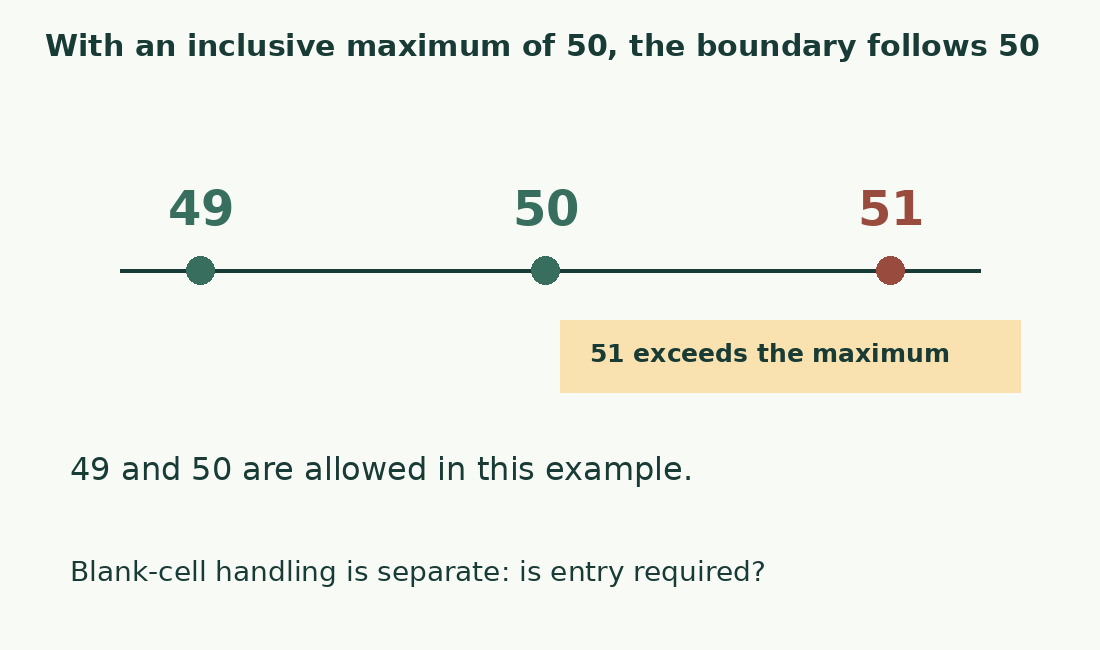
Select only input cells, excluding the heading. Choose Data > Data Validation > Text Length and less than or equal to 50. Less than 50 instead admits at most 49. Apply separate rules to fields with different requirements. Use a custom formula only for a genuinely combined condition, checking relative references; the dedicated length setting is easier for another maintainer to interpret.
Make the alert useful
An alert should name the field, unit and correction: “Shorten the description to 50 characters including spaces.” Set the style intentionally: a warning allowing continuation differs from a Stop alert blocking invalid typed input. Verify the configured behavior. Add =LEN(A2) and remaining capacity =50-LEN(A2) alongside the field; a negative result means over the limit.
Test below, at and above the boundary
Use a ten-digit string repeated five times, stored as text, to create exactly 50 ordinary characters. Remove or add one for 49 and 51: the first two pass an inclusive maximum, the last fails. Test empty and spaces-only cells under your separate policy. Include emoji or breaks if the destination uses them; Excel validation is not a guarantee of another system’s counting method.
Audit existing data explicitly
Applying a new rule does not certify previously entered values or automatically announce every existing violation. Add a length column, filter excessive values and preserve record IDs for correction. Keep formula errors separate from valid descriptions and report how many rows were evaluated. Do not truncate every string automatically at character 50; that can cut a name or remove a necessary condition.
Recheck after paste, fill and recalculation
Microsoft documents validation messages around direct entry; copying or filling can bypass those alerts. Reaudit after bulk imports and paste. Formula results can also change when referenced inputs change, so keep a recalculated outcome column and confirm calculation is current. New rows must actually receive the rule; similar formatting does not prove identical validation. Test the real entry and delivery workflow.
Validate the exported representation
Revise repetition and redundant information while preserving the identifying details. Rebuild and measure the final concatenated output after corrections, not only its starting fields. The character counter provides a separate check when its declared newline and Unicode rules fit the requirement. Keep source, length and outcome together. Where a minimum or exact size is required, a maximum alone cannot establish compliance.
Inclusive maximum of 50
| Length | Result | Reason |
|---|---|---|
| 49 | Allowed | Below maximum |
| 50 | Allowed | Boundary included |
| 51 | Too long | One above maximum |
| Empty | Separate rule | Is the field required? |
Sources and checks
- Microsoft: Apply data validation · Text-length conditions and configured messages.
- Microsoft: Data-validation limits · Existing values, copying, filling and changed references need checks.