Write the complete requirement
Write the unit, maximum and empty-field rule before configuring cells. “At most twenty characters; required field” is more precise than “short text”. If a destination limits joined output, a component-cell maximum alone is insufficient. Keep source text beside a helper length such as =LEN(A2). Separate numerical compliance, required content and editorial approval; a short string can still be incomplete or misleading.
Set the text-length criterion
Open Data > Validity > Criteria for the actual input cells. Choose Text length and the operator matching the requirement, including its boundary. A maximum inclusive of 20 must admit length 20; “less than” is different. Exclude headings and summaries. Start in a small trial range, and keep different field limits distinguishable instead of applying one convenient rule to every column.
Distinguish rejection from warning
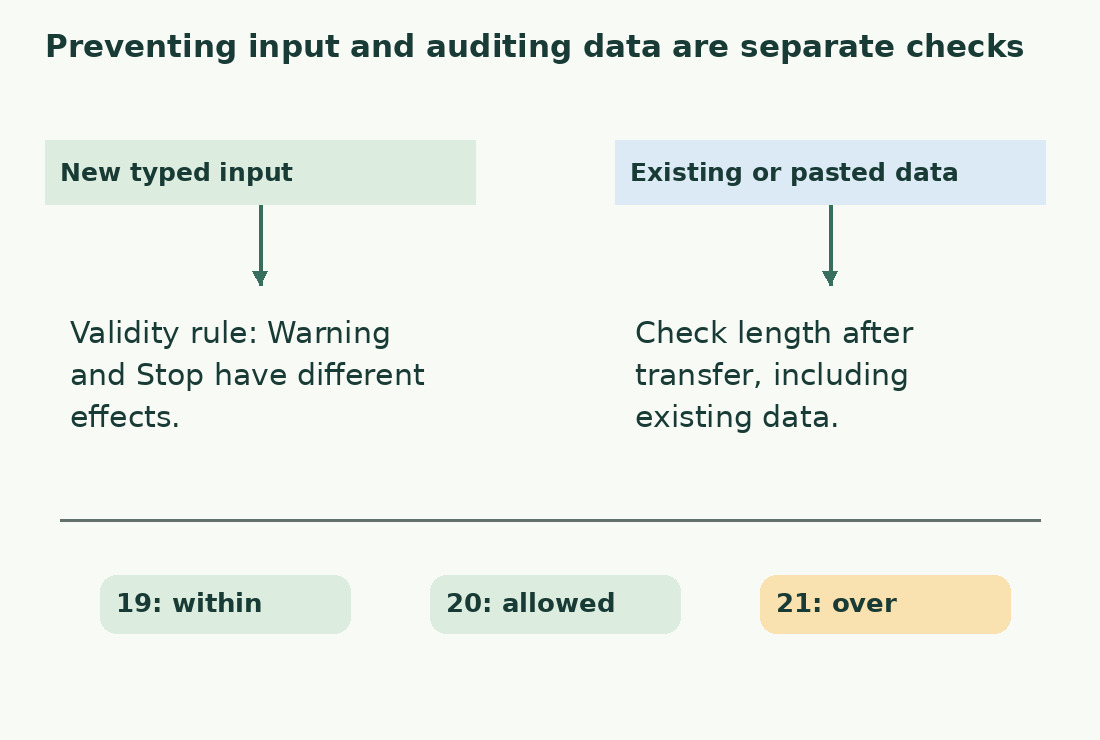
On Error Alert, a Stop action rejects invalid entries, whereas Warning or Information can allow acceptance. Enable the error message and write the field, threshold and useful correction explicitly. A review workflow may intentionally retain long text for later editing, but then the model must not claim to enforce an unbreakable maximum. Keep a visible status and a final audit instead of relying on the message alone.
Test below, at and above the boundary
Test 1234567890123456789 (19), 12345678901234567890 (20) and 123456789012345678901 (21). These are technical boundary strings, not editorial examples. The middle value should pass an inclusive maximum. Check an empty cell under the field’s requiredness rule as well. Record behaviour in your environment; the strings are hand-countable, but these instructions do not claim an interface test already performed.
Audit values already present
LibreOffice warns that validity is not retroactive for existing entries. Creating a maximum today therefore does not certify an old column. Use lengths and Tools > Detective > Mark Invalid Data to locate cases needing review. Preserve flagged text until it has been edited. Document any permitted exception separately; a worksheet exception does not grant permission from the external publishing system.
Check drag-and-drop and paste workflows
The official guide also identifies drag-and-drop and copy/paste as paths where the validity rule does not take effect. Bulk imports cannot rely on typed-entry rejection. Audit the transferred range and lengths even when paste shows no message. Make the sequence explicit: transfer, check range and lengths, revise flagged rows, consolidate. Verify newly appended rows enter both the intended rules and helper calculations.
Measure the output being exported
Adding labels, signatures or separators can make valid component cells exceed the final field’s limit. Compose the real output first and measure that column, following the Calc character-count guide. Keep review status beside each item and reread shortened text for negations, units and conditions. After export, compare near-limit and optional-field cases; the destination’s own required counting criterion remains final.
Hand over an understandable model
Provide a brief note stating maximum, required fields, alert type, helper column and post-import audit. Avoid “long values are impossible” when documented bypasses exist. For a single final string, the character counter offers a comparison. Keep 19/20/21 controls outside operational totals and rerun them when the rule changes. Entry prevention and review of the delivered dataset cover different risks; neither replaces the other.
Maximum 20: entry prevention and later audit differ
| Situation | Useful check | Limit to remember |
|---|---|---|
| New typed value | Text-length criterion and error action | Warning differs from Stop |
| Existing value | Length column and Detective | No retroactive enforcement |
| Drag-and-drop or copy/paste | Audit after transfer | No warning does not prove compliance |
| Output with a prefix | Measure joined output | Source cell can be shorter |
| 19/20/21 controls | Test boundary | 20 passes an inclusive maximum |
Sources and checks
- LibreOffice: Validity criteria and limits · Configure text-length validity and error actions, test 19/20/21-character boundaries, and audit existing, pasted and joined output.
- LibreOffice: Validity criteria and limits · Configure text-length validity and error actions, test 19/20/21-character boundaries, and audit existing, pasted and joined output.